
As the world’s largest professional social network , LinkedIn has over 810 million members. On such a vast platform, creating a profile that stands out within your profession, industry or skill set can be a daunting task.Tips for improving LinkedIn profiles are often aimed at job seekers and those looking to start a new career. For social marketers looking to connect with potential new customers, having an informative and engaging LinkedIn profile is essential. After all, exploring your profile will often be the first thing people do after you make contact with them.
 LinkedIn background images should not exceed 8MB , with recommended dimensions of 1584 (w) x 396 (h) pixels .Background photo generators like Canva and Adobe Spark allow you to customize your background image, add text, and more.
 Formula : Make X and Y occurExample:


How do I optimize my LinkedIn profile and why is it important to do so?
LinkedIn profiles allow you to create your own professional identity online. An incomplete or unprofessional profile can unfairly influence how someone perceives you, and within seconds they may decide not to engage with you or to call you for an interview.For job seekers
If you apply for a job or contact recruiters on LinkedIn, hiring managers/recruiters review your profile the same way they review a resume.For “social sellers”
For service sellers through social media and others looking to do business on the platform, your profile tells people why they should work with you. For CEOs or anyone in a sales , marketing, or business development role, your profile should act as a sales page . The clearer and more compelling your page is, the higher your connection request acceptance rate will be and the more messages you will receive.Upgrading your profile is free and can be continuously updated to convert recruiters and prospects – when done early on – with few updates.We’ve put together this 10-step guide to help you create the perfect LinkedIn profile. We based ourselves on our experience after having accompanied dozens of clients in their prospecting on LinkedIn in B2B.Moreover, if you are stuck in your prospecting, contact us to make a free diagnosis of your situation.Step 1: Change your LinkedIn profile picture
Your profile photo is the first thing people see on your LinkedIn profile, so having a high-definition, well-lit photo is essential.She must :- Show upper body not full body
- Be sharp and not pixelated
- Show positive expression

Step 2: Optimize your background image (or cover photo)
Background image is one of the most underused aspects of a profile, often left to LinkedIn’s default basic background. Good background photos do one or more of the following three things:- Match your audience (industry, business sector, etc.)
- Show personality
- Present or prove credibility
 LinkedIn background images should not exceed 8MB , with recommended dimensions of 1584 (w) x 396 (h) pixels .Background photo generators like Canva and Adobe Spark allow you to customize your background image, add text, and more.
Step 3: Write a compelling headline
The profile title is your chance to grab a visitor’s attention – but you’ll need to do it in 120 characters or less . The #1 mistake we see on our customer profiles is a vague or generic title .Most of the headlines are boring and confusing, and often read like this:- “We help small businesses offload their bookkeeping”
- “Product and process innovation, Data Scientist, Machine learning expert”
- “Give the most transformative leaders in the world the means to act through cultural development”
- “CEO of the Taratata agency”
 Formula : Make X and Y occurExample:
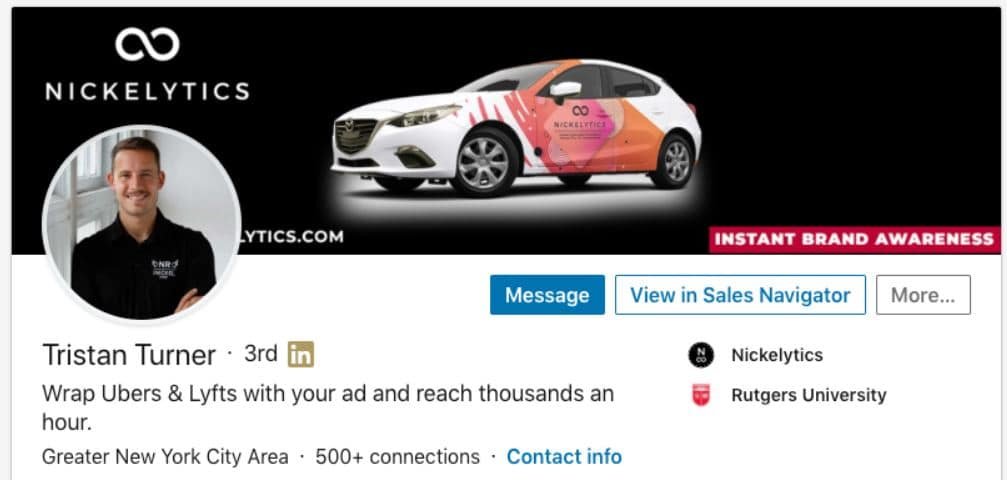
Step 4: Use the “About” section to stimulate action
The ‘ About ‘ section of your profile explains your title , providing more context , details and highlights about your background and accomplishments . Use this section to convince your audience that they should take action with you.Here are two formulas to imitate for an “About” section:
Formula 1: The history of social proof
After an internship at {Company A}, I discovered my passion for working with {Technology specific to the jobs applied for}.I am looking for this{poste} in {industry} and I’d be happy to share my resume if you message me here on LinkedIn!Formula 2: The free way
I help A do B, by C. If you want D, then do E and get F.- A = the people you help
- B = the desired result
- C = your specific process
- D = what your prospect wants to do better
- E = action you want them to take
- F = Free offer

Step 5: Add more to your experience section
Clearly explain what you did in a particular company in one or two sentences, then attach your most valuable content like:- Case studies
- Projects
- blog posts
- Press articles
- Etc.

Step 6: Change your LinkedIn URL
Your LinkedIn URL is your personal address on the platform. Most people choose to use their own name, but influencers and others who use pseudonyms may want to be listed on the site respectively.By having a personalized LinkedIn URL, you will be more easily found on the platform, as well as by search engines that crawl the web. Custom LinkedIn URLs are also great for:- business cards
- CVs
- Portfolios
- Email signatures
- Company biographies
- Connect to LinkedIn
- Go to the “Me” icon / profile picture to the right of the top navigation bar.
- Click on “View profile”.
- Click on “Visibility” in the upper right corner of the page, then on “Change” in the “Edit your public profile” section

After opening the new page, can modify the URL at the top right, then click “Save”.

Add the text you prefer. Note: LinkedIn imposes a minimum of three characters and a maximum of 100 characters for profile URLs. You cannot use spaces, symbols, or special characters.
Step 7: Add certificates, awards and other achievements
Awards, licenses and certifications can boost your profile even further. By listing your unique accolades, you can increase the likelihood of appearing in more specific searches that focus on specific honors and accomplishments.To add licenses or certificates:- Log on to LinkedIn.
- Go to the “Me” icon / profile picture to the right of the top navigation bar.
- Click on “View profile”.
- In the top module with your name, photo and title, click on the “Add a profile section” button.
- After the drop-down menu appears, click on “History”, then on “Licenses and certifications”.
- Fill in the details and save, or save and add another.
- To add honors or awards:
- Log on to LinkedIn.
- Go to the “Me” icon / profile picture to the right of the top navigation bar.
- Click on “View profile”.
- In the top module with your name, photo and title, click on the “Add a profile section” button.
- After the drop-down menu appears, click on “Achievements”, then on “Honors and rewards”.
- Fill in the details and save, or save and add another.
Step 8: Add articles to your profile
Sharing your own opinions and knowledge with the LinkedIn community can increase your visibility on the platform and generate interest in your profile . Articles are posted to your account and delivered to the feed of those you are connected with (as well as those who follow you). Articles are also viewable by other LinkedIn members on the platform and may appear on external search engines .To post an article:- Log on to LinkedIn.
- Navigate to the home page (if you’re not already there)
- Click on “Write an article on LinkedIn” towards the top middle of the page
- Start typing.
- Click on “Publish”
- Log on to LinkedIn.
- Navigate to Home if you’re not already there.
- Click “Start a post” at the top middle of the page.
- Start typing, add photos, videos, files, links and / or hashtags.
- Click on “Publish”
Step 9: Add media to your profile
Adding media to your profile makes your page more interesting and engaging for visitors. Unlike articles or posts, media resides in your resume section and can therefore be viewed by people who visit your profile (depending on your privacy settings).Media on your profile is less ephemeral than posts in the feed, so try to include items that are particularly important and/or up-to-date. Case studies, testimonials and press releases are examples of elements that can transform your LinkedIn profile from a simple online resume into something more active and substantial.To add Media to your profile :- Connect to LinkedIn
- Go to the “Me” / profile picture icon to the right of the top navigation bar.
- Click on “View profile”
- Click on the “pencil” icon in the upper right corner of the “About” or “Experience” module (depending on where you want to add media)
- Add media either by download or by link
- Click on “Save”